What Was I Watching · Guide ← Back to overview

Complete guide

How to use What Was I Watching

New to the app, or just upgraded? This walkthrough covers everything — adding shows, finding where to stream them, picking up where you left off, and sharing picks with friends on iPhone and Android.

1

Add your first show

Your list is the heart of the app — it's everything you're watching, want to watch, or were told you have to watch.

  1. Tap the + button in the top corner, type the show's name, and tap "Click here to Search."
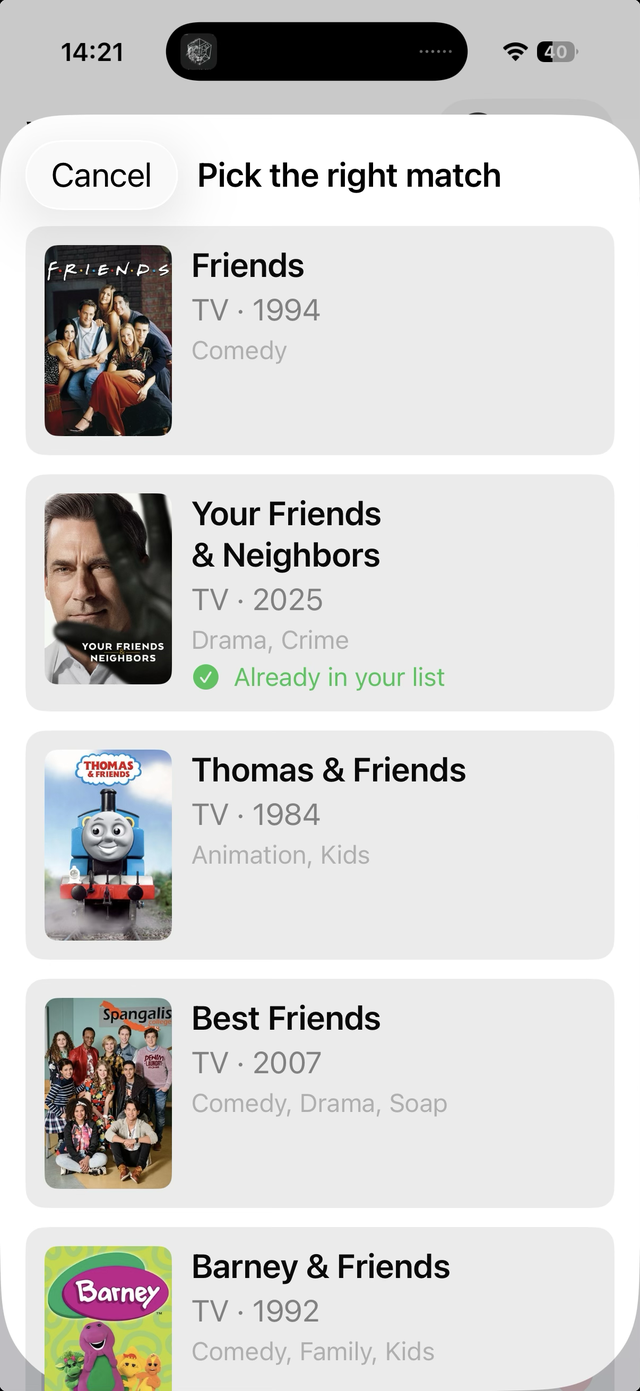
  2. On the "Pick the right match" screen, choose the correct title — each result shows the type, year, and genre, so you can tell Friends (1994) from Thomas & Friends at a glance. Anything already saved is flagged "Already in your list."
  3. It's saved instantly and lands in "Not Started" until you begin watching. No account required to get started.
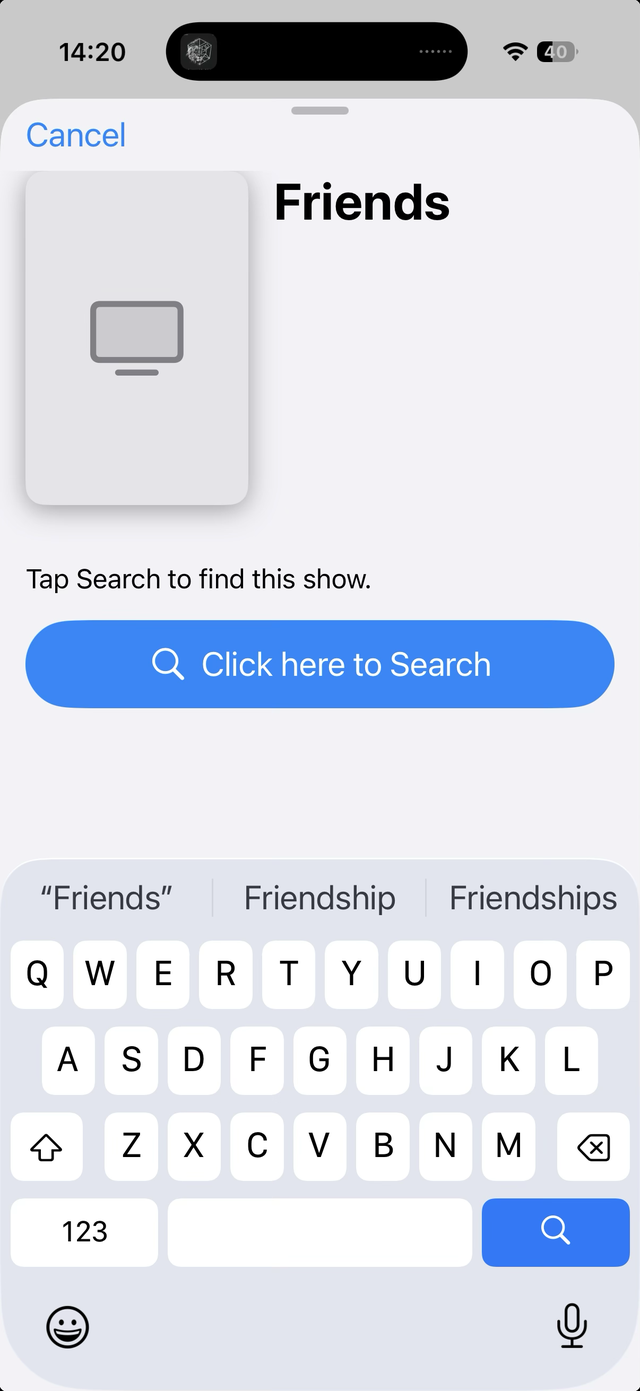
Adding a show: type the name, then tap Click here to Search
Type the name, then tap Click here to Search.
The Pick the right match screen listing candidate shows with type, year and genre
Pick the right match — year and genre help, and anything you already have is flagged.

Set the details that matter to you

Open any show to fine-tune it:

  • Watch state — use the state picker to move a show between Not Started, Watching, and finished.
  • Rate it — give a show a thumbs up or thumbs down, or tap the heart for the ones you truly loved (handy later when a friend asks for a recommendation).
  • Season — tap the season you're on; the app tracks how many you have left — "1 more to binge" — so you always know what's next.
  • Add a note — jot a personal note on any show: who recommended it, or why you saved it.

Finished an episode? Tap "Watched today" to log it without changing anything else.
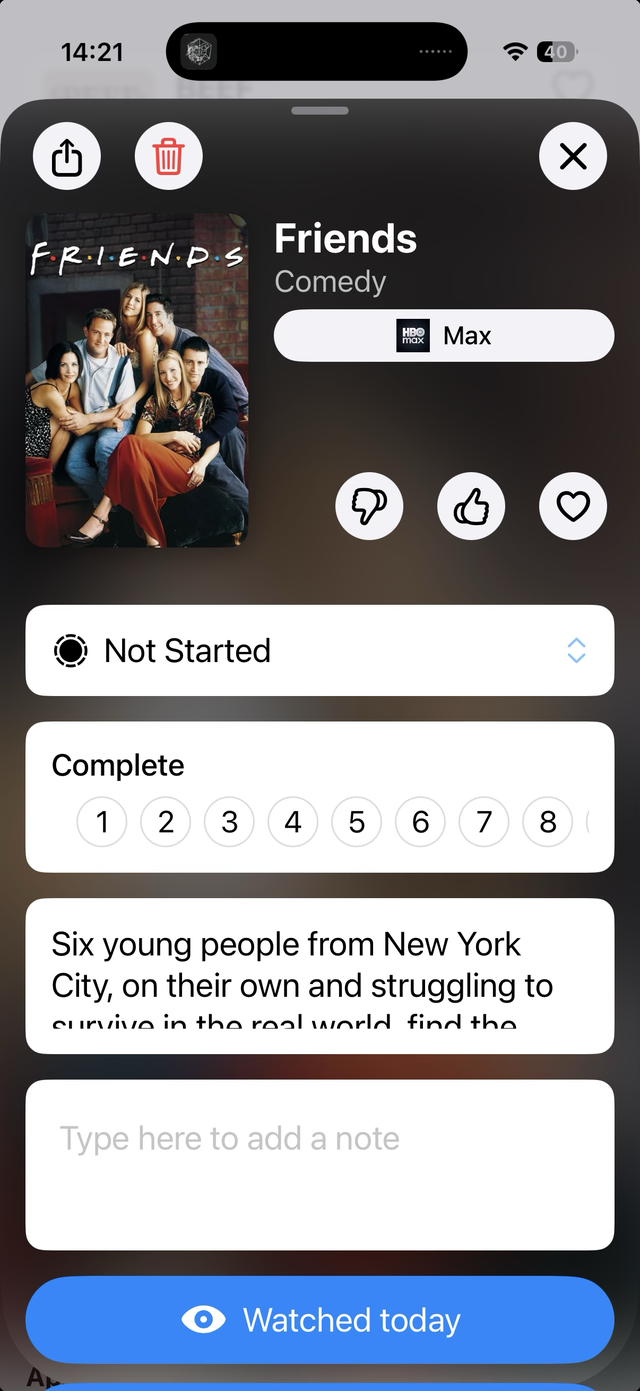
A show's detail screen showing watch state, rating, seasons and a note field
Every show's detail screen: watch state, rating, seasons, and a note — with Watched today at the bottom.
Tip: Add shows the moment someone mentions them — in the cinema queue, mid-conversation, wherever. That's the whole point: never again "what was that thing again?"
2

Find where to watch

You're paying for half a dozen streaming services and none of them tells you which one has the show you want. The app does.

  • Right in your list, each show shows its streaming service's logo beside the title — a glance down the page tells you what's on Netflix, Prime Video, Paramount+, BritBox, Apple TV, and the rest.
  • Open a show and you'll see a "Visit" button for its service — for example, "Visit Paramount+" — that takes you straight to where it's streaming.
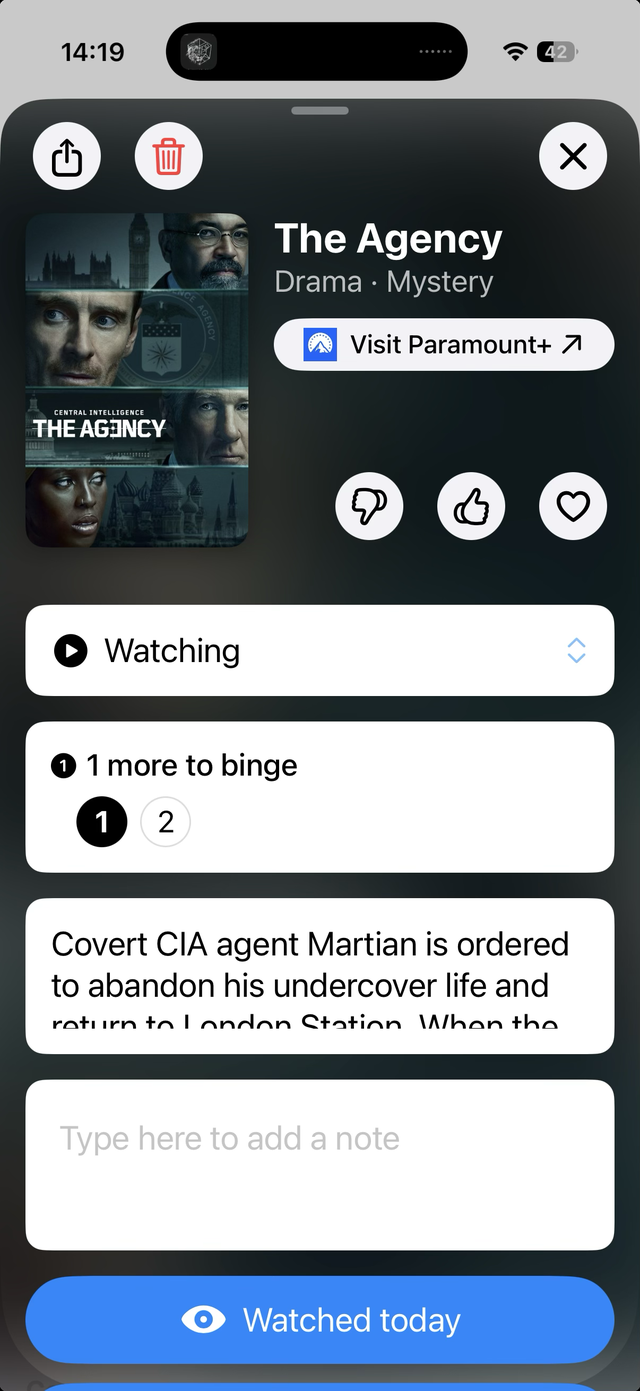
A show detail screen with a Visit Paramount plus button linking to the streaming service
The Visit button names the service and links straight to it.
Tip: If a show moves from one service to another (it happens constantly), the button follows it to the current service — so you're never sent to the wrong app.
3

Pick up where you left off

It's the end of a long day and you just want to resume that show from last week — but what was it called? The app keeps the answer one glance away.

  • Everything you're partway through is grouped into a "Watching" section at the top of your list, each row showing how much you have left — "1 more to binge," "Returning," or "Complete."
  • Shows that haven't dropped yet wait under "Up Next," organized by when they arrive ("Coming July 2026") — so you know what's coming and when.
  • Add the home-screen widget — "See your recent watch history at a glance" — to see your recent shows as posters without even opening the app.
  • Ask Siri what you were watching — it can narrow to a specific streaming service, or say "recently" for everything. iPhone
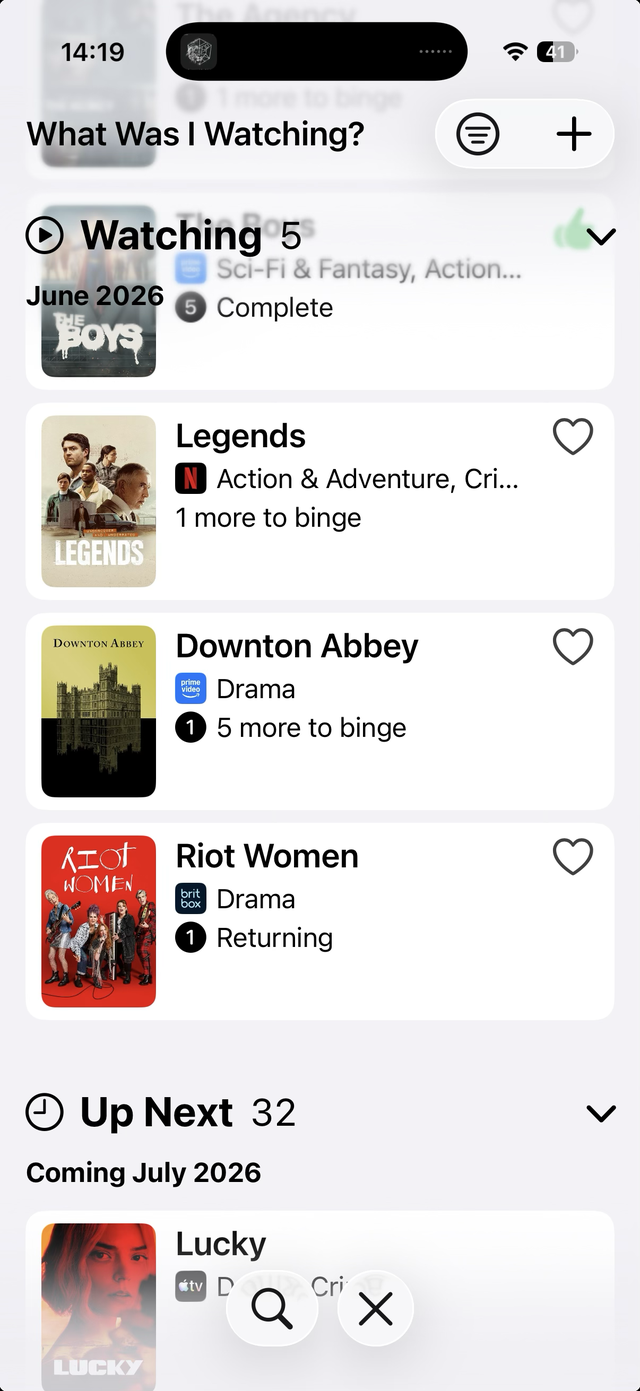
The main list grouped into Watching and Up Next sections, each row showing its streaming service logo and progress
Your list, grouped into Watching and Up Next — each row shows its service logo and what you have left.

Add the widget

iPhone & iPad Touch and hold an empty area of your Home Screen until the apps jiggle, tap the + in the corner, search for What Was I Watching, choose a widget size, and tap Add Widget.

Android Touch and hold an empty area of your Home screen, tap Widgets, find What Was I Watching, then drag the widget where you want it.
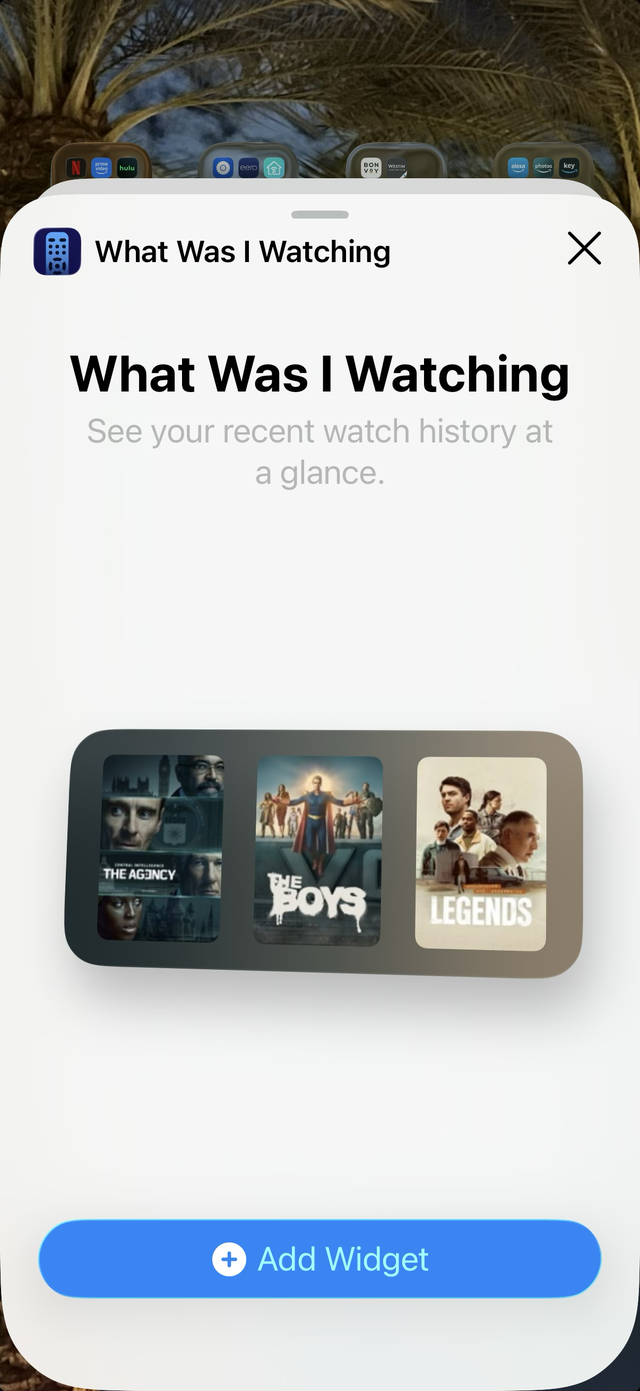
The What Was I Watching home-screen widget showing recent shows as posters, with an Add Widget button
The widget shows your recent shows as posters, right on the Home Screen.
4

Share a show — and add one a friend sent you

This is the feature people love most, and the one worth understanding fully. It works even when you're on iPhone and your friend is on Android (or the other way around).

Sending a show

  1. Open the show you want to recommend.
  2. Tap Share and pick how to send it — Messages, WhatsApp, Reddit, email, anywhere.
  3. Your friend opens a page with the full pitch — poster, summary, and the key details (type, year, genre, seasons, and whether it's still running) — and can add it to their own list in a tap. No IMDb detour, no typing out the whole synopsis.

Receiving a show someone sent you

When you tap a shared link, you'll land on a web page showing the show. Here's the part that trips people up the first time:

  1. If you don't have the app yet, install it from the button on that page first.
  2. Then go back to where you opened the link — Messages, Reddit, wherever — and tap the link again.
  3. This time the app opens directly, with the show ready to add to your list. Confirm, and it's saved.
Why the second tap? A freshly installed app can't "catch" the link you tapped before it existed. Re-tapping the original link is what hands the show off to the now-installed app. If you already have the app, a single tap opens it straight away.

Android Already installed but the link opened a web page instead of the app? On that page, tap "Already installed? Open the app" to jump straight in.

5

Tips & accessibility

Get more out of your list

  • Filter and sort your list from the control in the top bar to focus on what you're watching now.
  • Search your list with the search button to jump straight to any show.
  • Tap the heart right from the list to mark a show you love — no need to open it.
  • Rate shows as you finish them — your loved list becomes your go-to when someone asks for a recommendation.
  • Dark mode follows your system appearance automatically, with a treatment built for low-light reading.

Built to be used by everyone

What Was I Watching supports VoiceOver, Voice Control, Larger Text, Dark Interface, and color-independent state indicators. For the full breakdown, see the accessibility statement.


FAQ

Do I need an account to use the app?

No — you can search for shows and start building your list right away. Just download the app and add your first show.

Is it really on both iPhone and Android?

Yes. What Was I Watching works across iPhone and Android, and shared links work between platforms — so you can recommend a show to a friend regardless of which phone either of you carries.

A friend sent me a show but tapping the link just opens a web page. What now?

If you've just installed the app, go back to where the link was (Messages, Reddit, email, etc.) and tap it again — the app will open with the show ready to add. If you already have the app installed, use the "Already installed? Open the app" link on that page. See step 4 for the full walkthrough.

I just added a show — where did it go?

New shows start in the "Not Started" state until you begin watching them. Open the show and use the state picker to move it to "Watching" once you start, and it'll join your Watching section.

How do I know which streaming service has a show?

Each show in your list shows its streaming service's logo beside the title, so you can tell at a glance. Open the show and you'll also get a "Visit" button (for example, "Visit Paramount+") that takes you straight to where it's streaming.

Can I see what I was watching without opening the app?

Yes — add the home-screen widget to see your recent shows at a glance. On iPhone you can also ask Siri, "What was I watching recently?"

Get What Was I Watching

Free to download on iPhone and Android.